Mac Version
Official Version Now Available
The official Mac version is now available and supports the following features:
- Batch Recognition
- PDF Recognition
- Tibetan-Chinese Translation
- Bilingual Interface
Frequent Software Updates
The software is frequently updated. If it's not working, please reinstall the latest version.
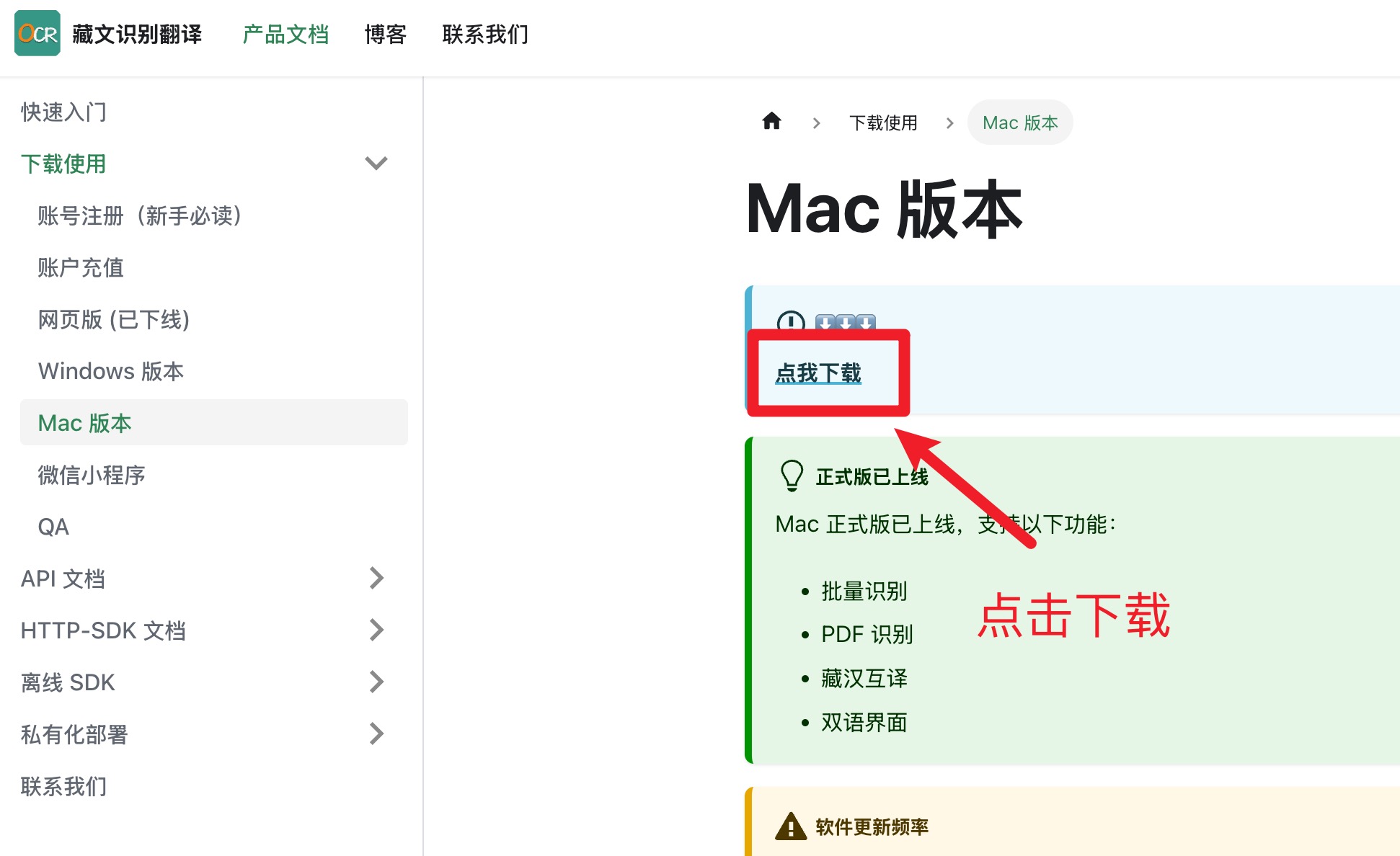
Click here to download the Mac software
Click here to download the Mac software 【Alternative link】
This article assumes you're using a Mac. If you're using Windows, please check the Windows Usage Guide.
Preparation
- First, download the APP and log in to get your account information:
- Account recharge, skip if you've already recharged:
Video Tutorial
Installation
Usage
Text and Image Tutorial
Download
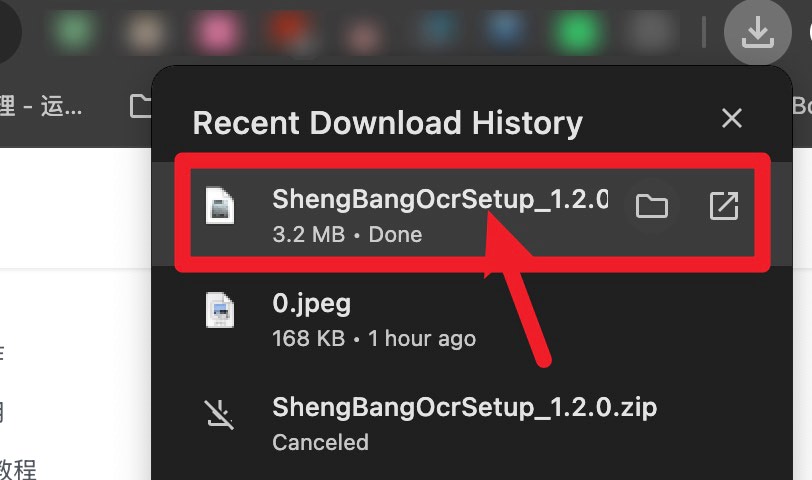
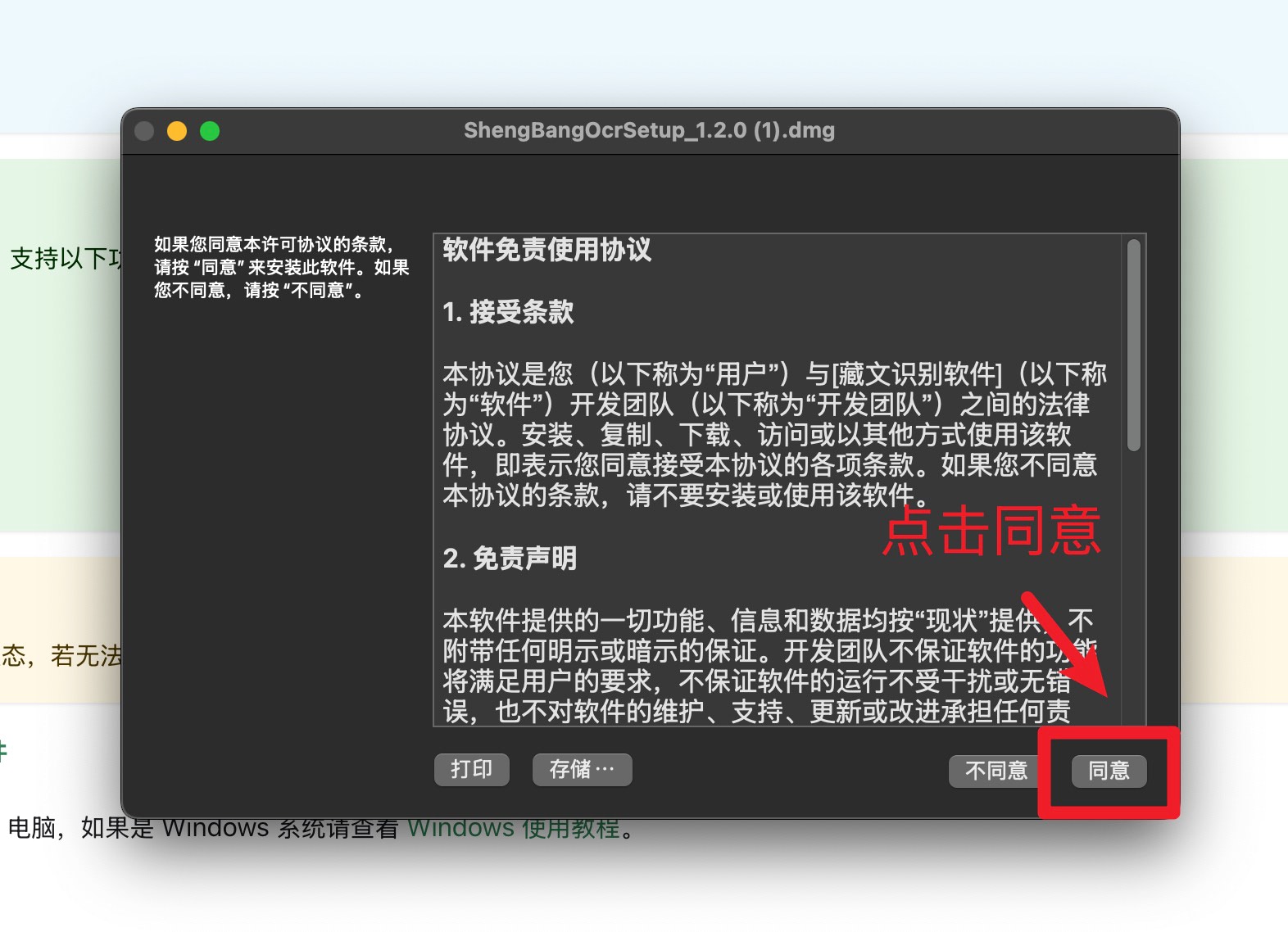
| Click to Download | Wait for the download to complete and open the software | Click "Agree" to the agreement |
|---|---|---|
 |  |  |
Installation
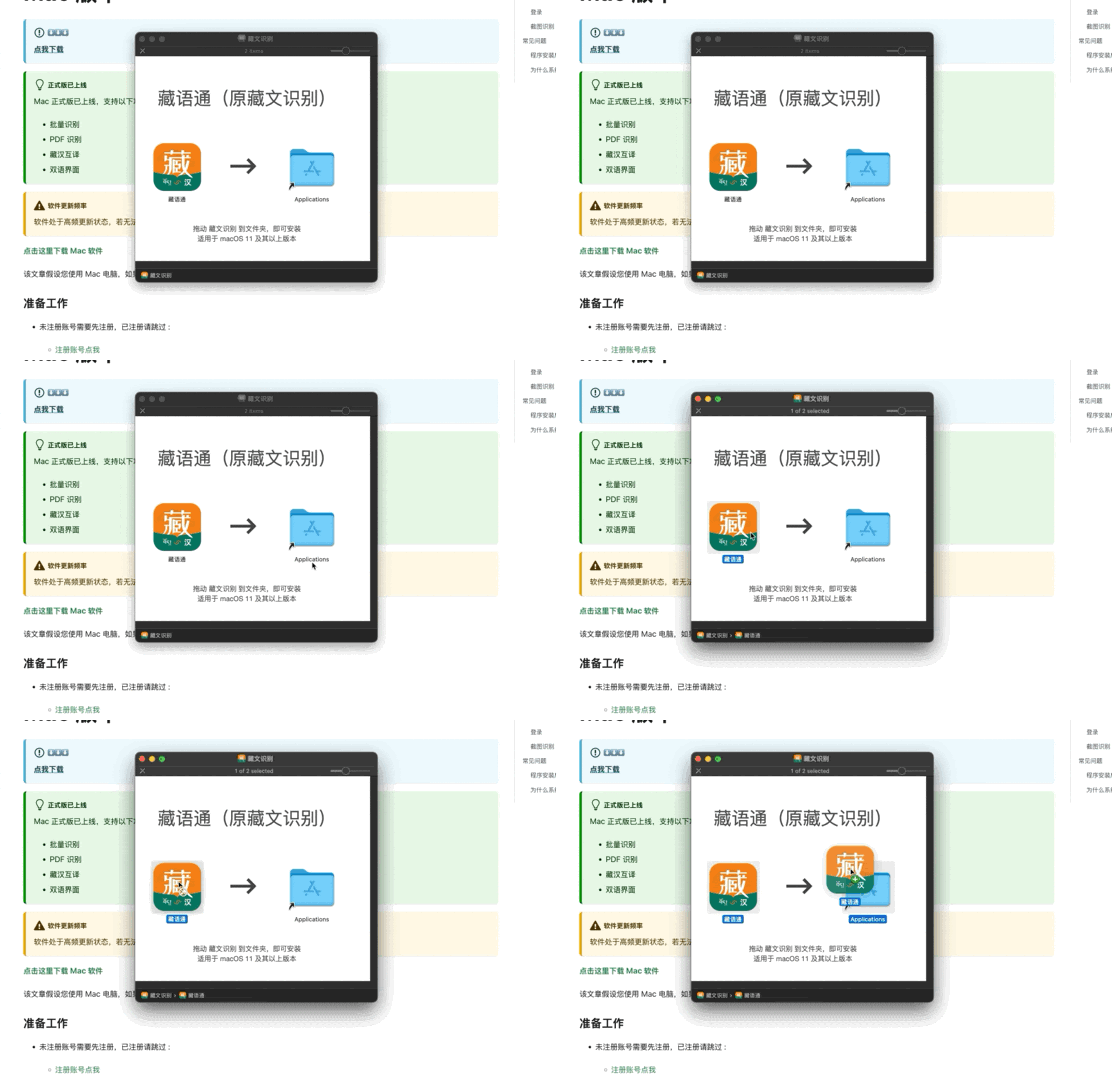
| Drag to Install the Software | Open "Tibetan Language Assistant" in the software and click to open |
|---|---|
 |  |
Login
Quick Login (Recommended)
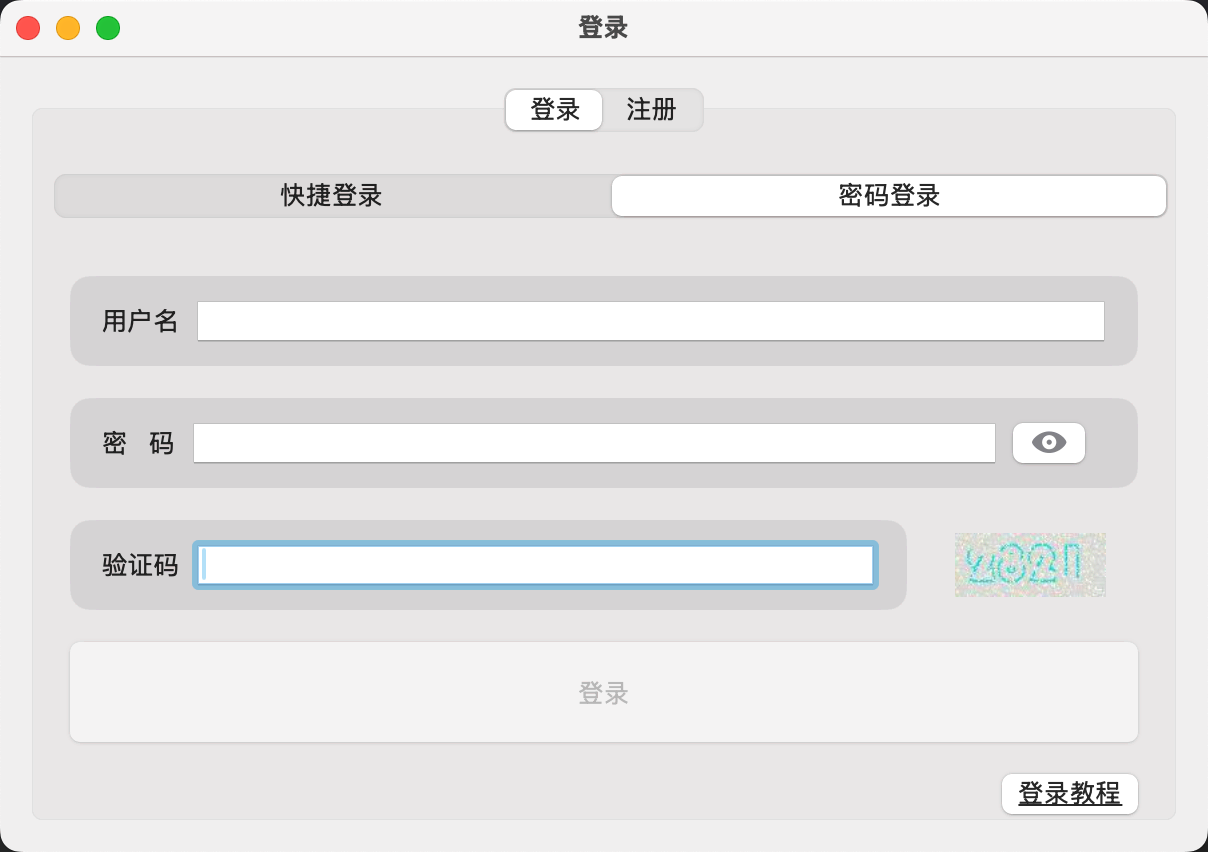
Login with Account and Password
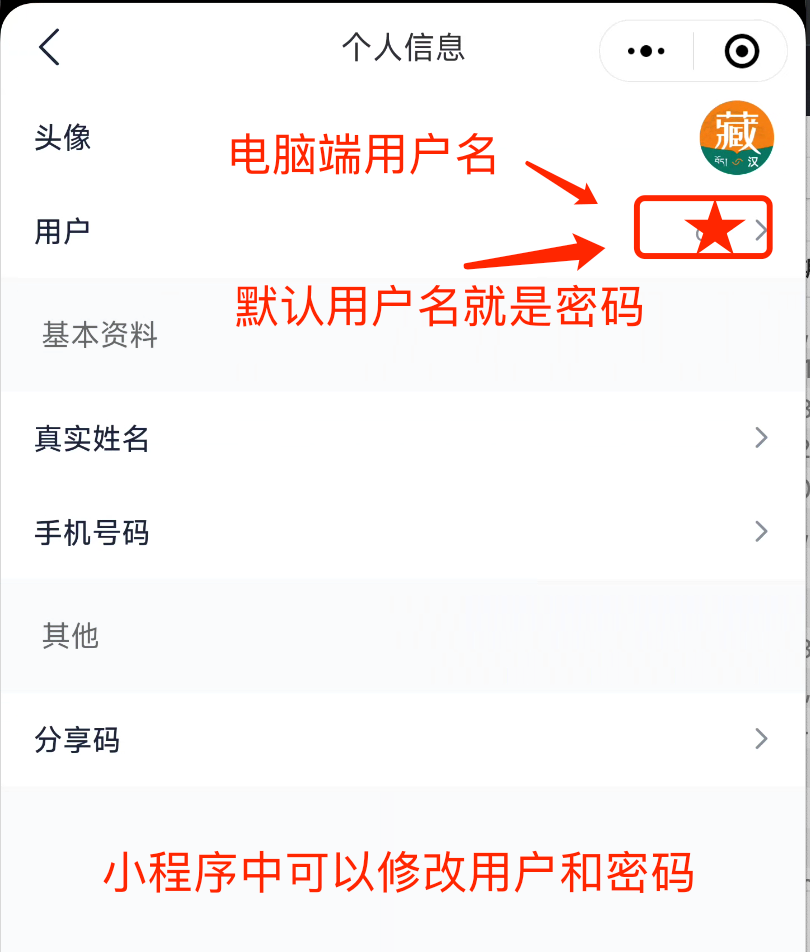
| Enter username and password to log in | View Account (view on APP) |
|---|---|
 |  |
Screenshot Recognition
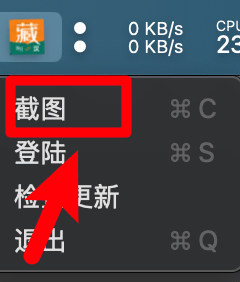
Right-click the program and select the Screenshot feature
Open Screenshot
Select Text
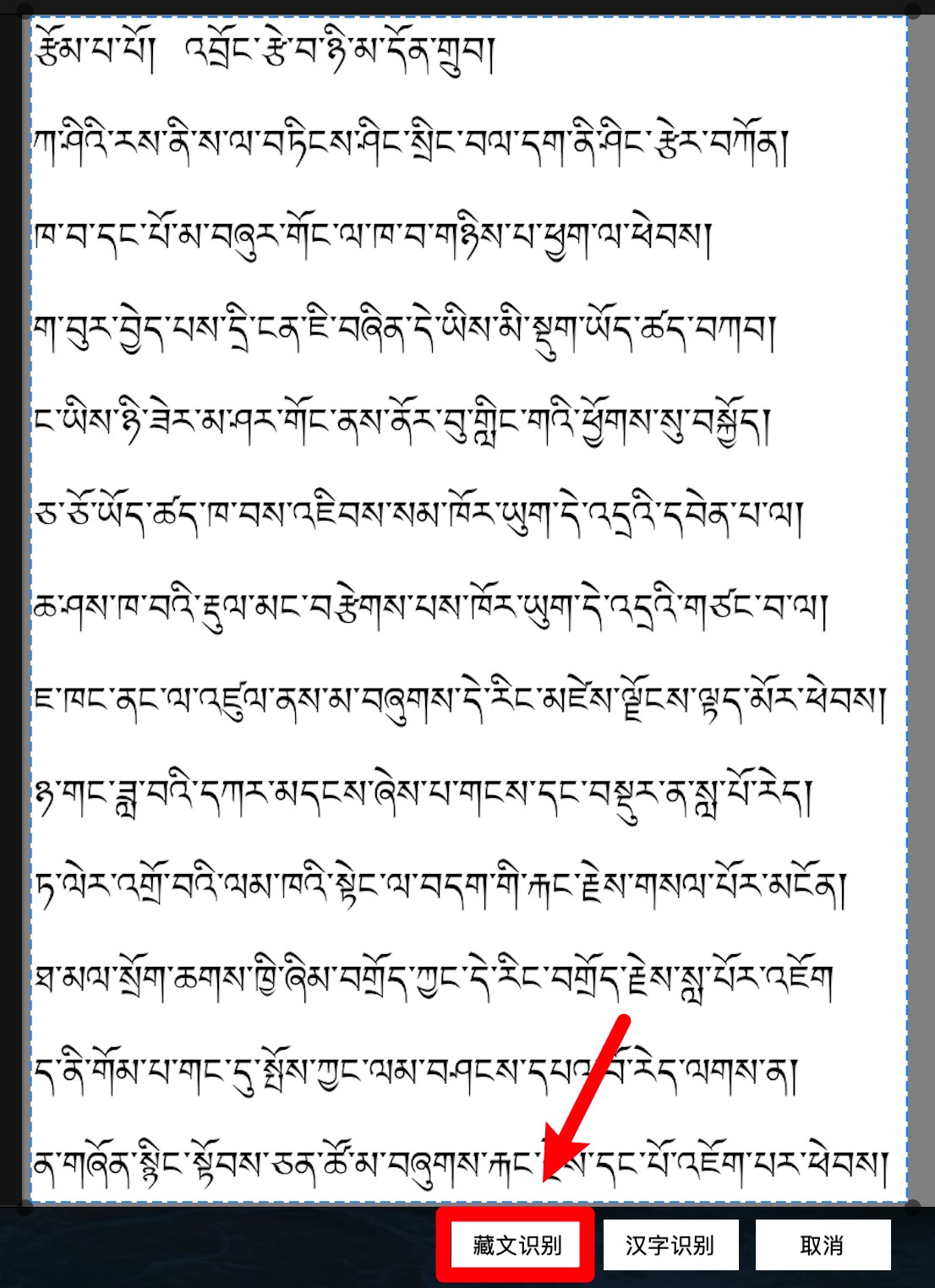
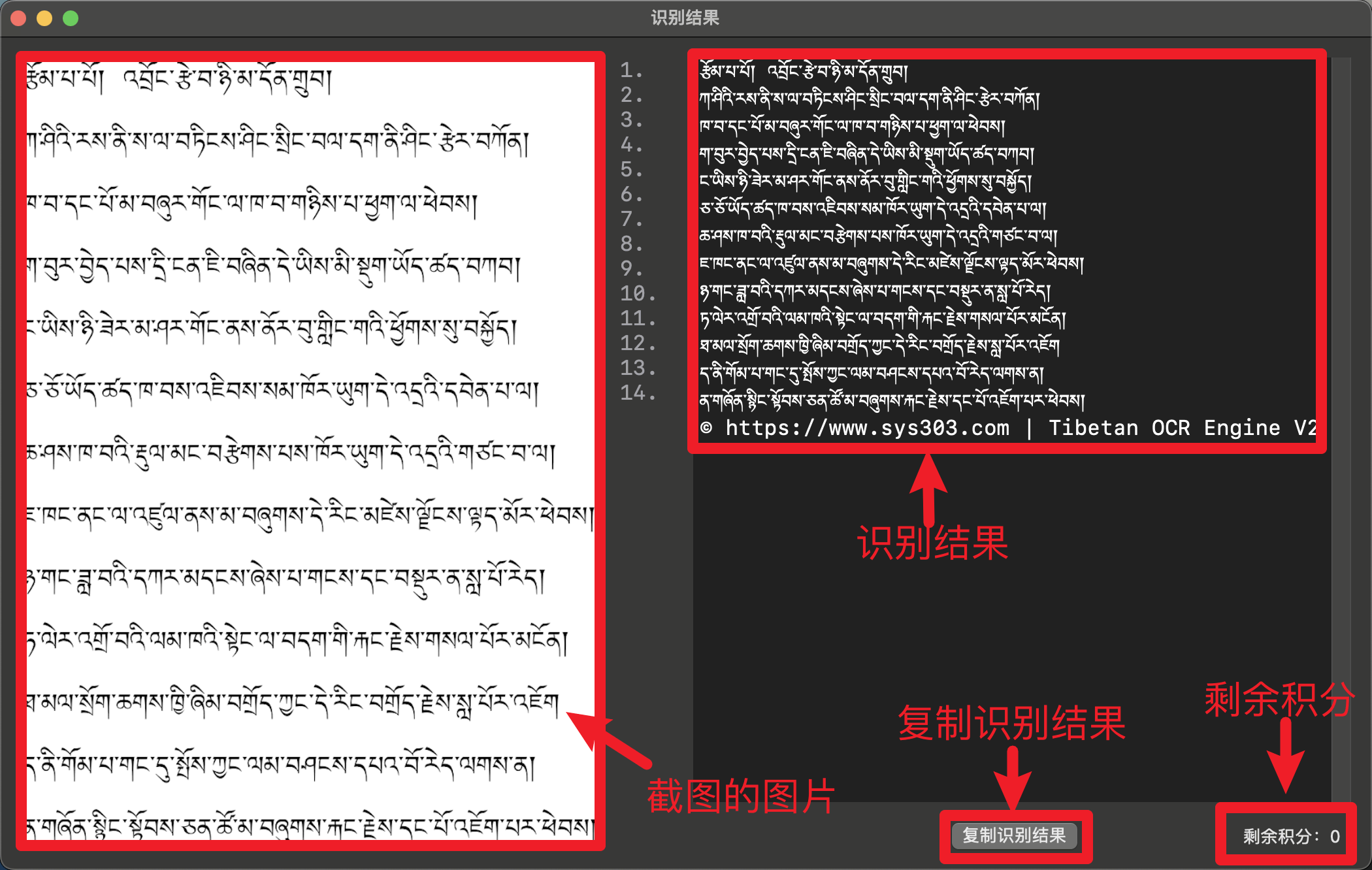
Recognition Result
Frequently Asked Questions
Where is the program located after installation?
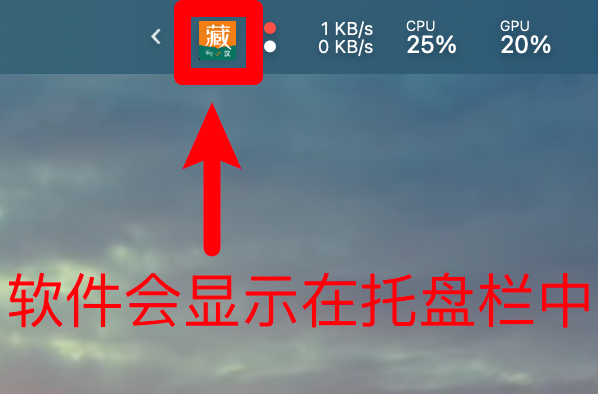
Why doesn't the system taskbar show the program?
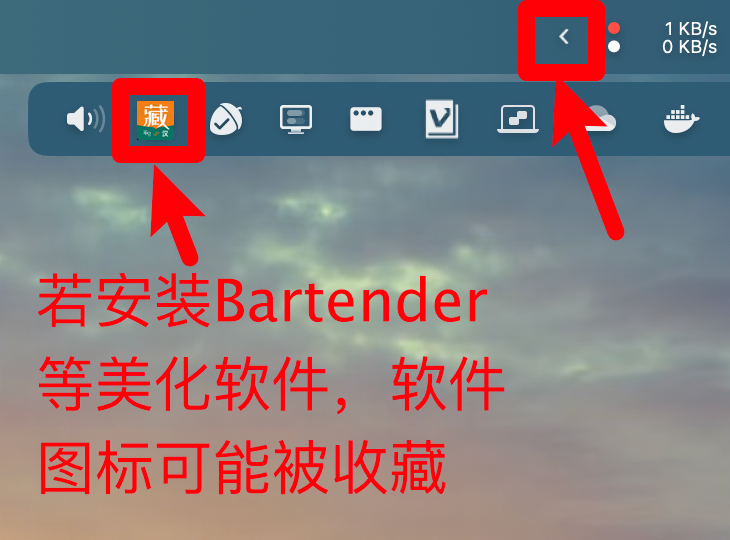
You can left-click and hold the program to drag it to the taskbar.
Unable to capture screen content?
You need to enable screen capture permissions, otherwise, screen content cannot be captured.